With IP Nexia you can easily create an automated IVR through our intuitive Graphical User Interface.
There are 2 ways of creating an IVR:
- The first way is through main number management in SmartPBX App, only 1 level IVR
- Second is through Callflows app if you need more advanced IVR with more than 1 level.
1. Log into our portal https://uc.ipnexia.com and go to SmartPBX app
Once in SmartPBX app, go to Main Number.
Under Incoming Call Handling, select Virtual Receptionist and click on the settings button
From there, you can easily create your menu on the left side, and on the right side, select greeting that should be played.
2. Log into our portal https://uc.ipnexia.com and go to Callflows app
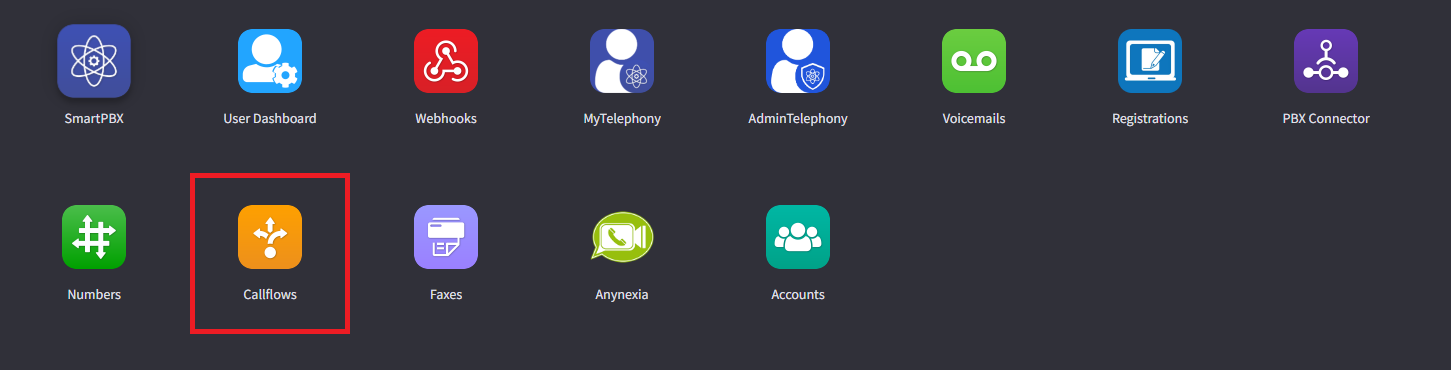
Select once more Callflows:
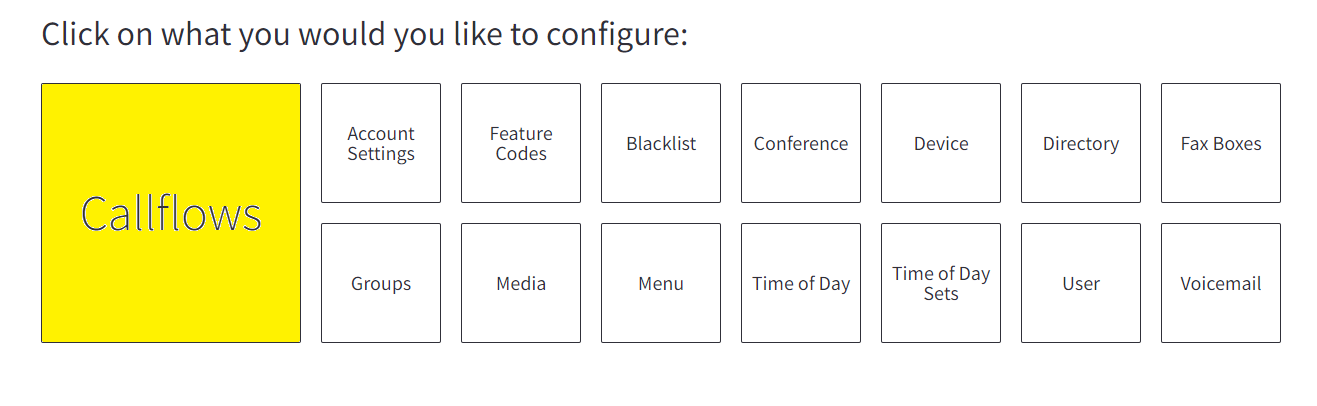
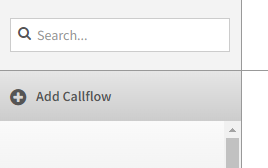
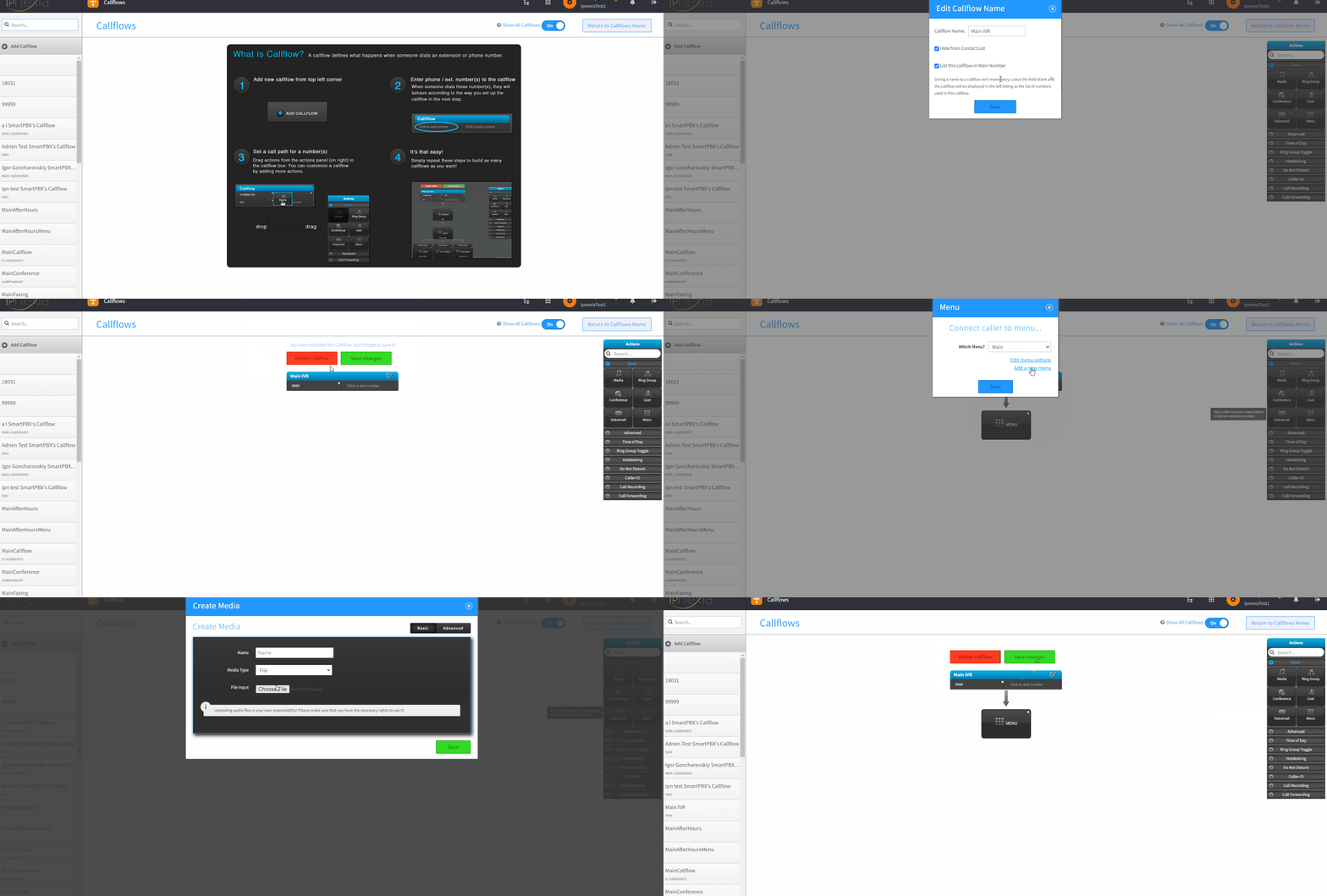
From this menu you can create a new callflow by clicking on + Add Callflow
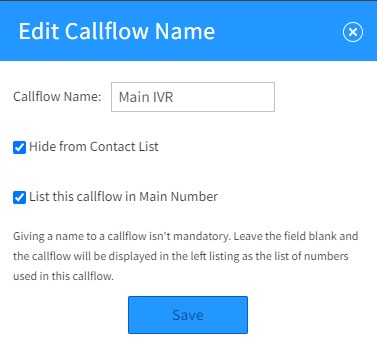
You can name it for example Main IVR by clicking on the little edit button.
Here you can choose if either or not this callflow should be visible in the contact list and in the Main number settings (in SmartPBX App)
Also you'll need to assign a number.
For the ease we've assigned an internal extension :
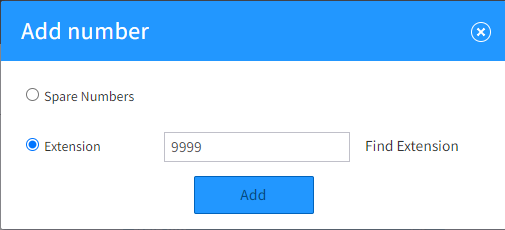
Once so far we can start building our menu.
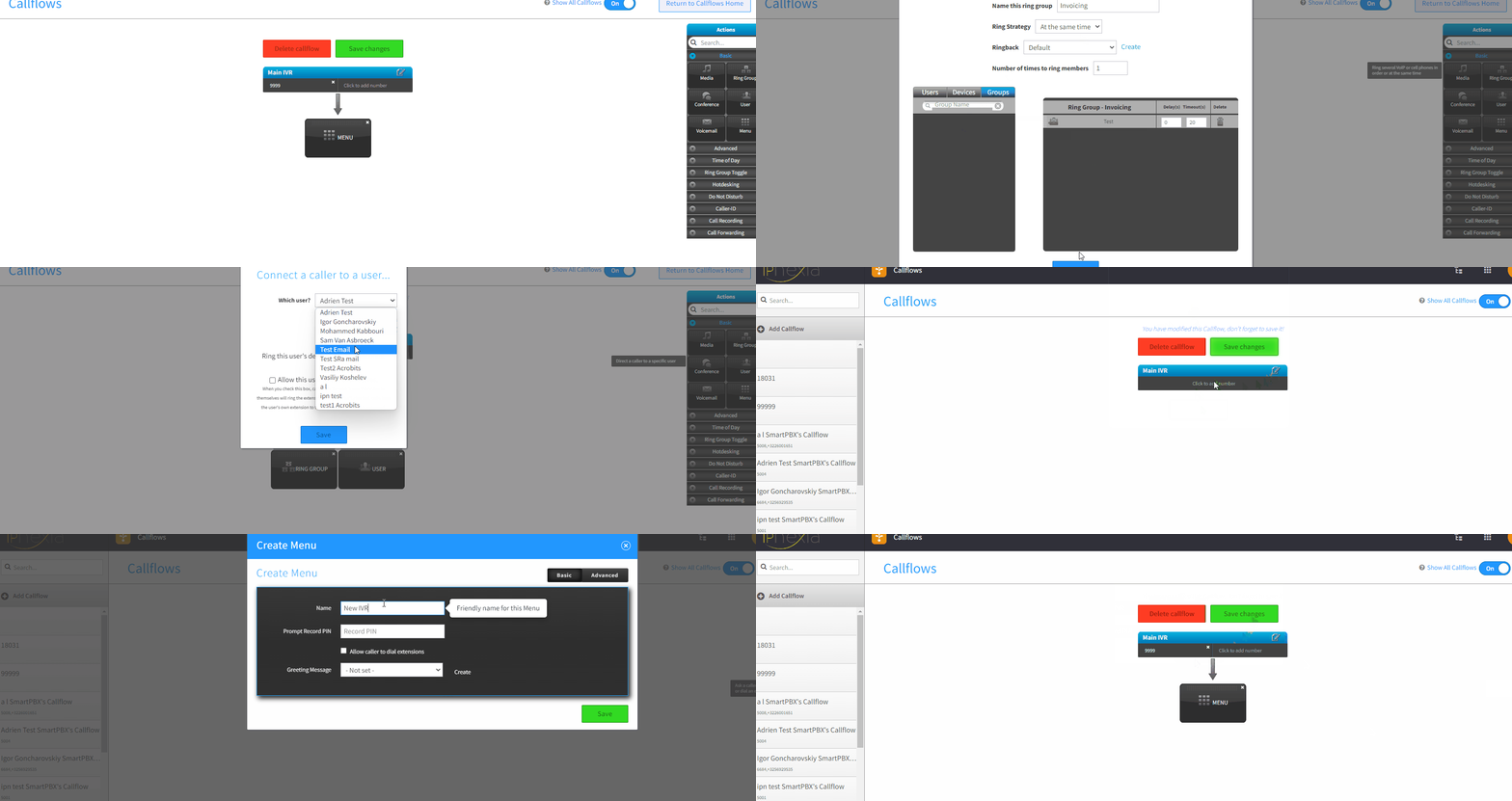
On the right side you have the toolbox in which you can drag and drop menu option.
Give it a name and choose a media to play (only .mp3 format).
From the toolbox you can now choose a user, a group or a device to forward calls to when an option in chosen.
Comments
0 comments
Please sign in to leave a comment.